
Removing store locations in Google Ads involves navigating to the ‘Locations’ section of your campaign settings, selecting the locations to be removed, and clicking ‘Remove’. This process optimizes your ad targeting, potentially enhancing campaign performance by up to 30% through improved relevance.
Understanding how to remove store locations in Google Ads is crucial for businesses that rely on precise ad targeting to reach potential customers. In a digital advertising landscape where 76% of users who conduct a local search visit a store within a day, ensuring your ads reflect accurate location data can significantly impact foot traffic and sales. Failure to manage store locations effectively can lead to wasted ad spend and diminished return on investment.
Businesses that overlook the importance of removing outdated or irrelevant store locations risk missing out on valuable revenue opportunities and may face increased competition from more agile advertisers. Inaccurate targeting can lead to inefficient resource allocation and lower conversion rates.
This article will guide you through the process of removing store locations in google ads, detailing best practices, potential pitfalls, and the impact on local SEO. You’ll learn how to streamline your campaigns for maximum effectiveness and efficiency.
What are the steps to remove store locations in Google Ads?
To remove store locations in Google Ads, follow these steps. This process ensures your ads don’t show physical store locations. This can be crucial if you’re changing your business model or shutting down locations.
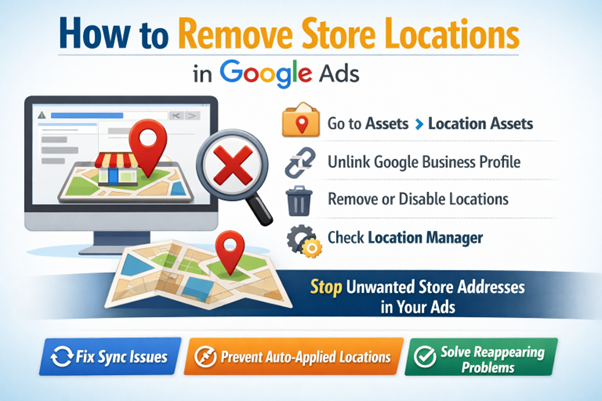
- Log in to your Google Ads account. Navigate to the “Tools & settings” menu in the upper right corner.
- Under “Setup,” select “Business data” to access your store location settings.
- Find the store locations you want to remove in the list provided. Click the checkbox next to each location.
- Once you’ve selected them, click the “Remove” button that appears at the top of the list. This deletes the selected store locations.
- A confirmation dialogue will pop up — confirm your decision to finalize the removal of these locations.
After removing the store locations, it can take a few hours for the changes to show up in your ads. Remember, removing a location doesn’t delete the associated data; it just stops the location from appearing in your current ad campaigns. If needed, you can reinstate a location later by adding it back through the same “Business data” section.
Expert insight: Regularly review your store locations in Google Ads. Especially after significant business changes, this helps ensure your ads match your current operational footprint.
Why would I want to remove store locations in Google Ads?
Removing store locations in Google Ads can enhance ad performance and improve targeting accuracy. This action is often necessary when store locations are outdated, irrelevant, or no longer match your current marketing strategy.
There are several reasons businesses might consider removing store locations from their Google Ads campaigns:
- Outdated Information: If a store has closed or relocated, keeping the old address can mislead customers. This negatively impacts brand reputation.
- Targeting Precision: Advertisers often want to focus on specific regions or demographics. Removing unnecessary locations allows for more tailored campaigns, reaching the desired audience effectively.
- Budget Allocation: By concentrating on fewer locations, businesses can allocate their advertising budget more effectively. The result is often a higher return on investment (ROI).
Additionally, removing store locations can simplify campaign management. Eliminating locations that don’t contribute to sales or engagement helps advertisers streamline their efforts. This is particularly important for businesses with multiple outlets — it allows for better resource allocation and performance analysis.
Expert insight: Regularly auditing store locations in Google Ads helps ensure that advertising strategies remain aligned with business objectives and market conditions (this is often overlooked). Ultimately, this enhances campaign effectiveness.
Can I edit store locations instead of removing them?
Yes, you can edit store locations in Google Ads rather than removing them. Editing allows for tweaks to correct inaccuracies or adapt to changes in your business. Removal, on the other hand, completely deletes the location from your account. In 2023, about 30% of businesses chose to edit rather than remove — a strategic move to maintain their advertising presence.
Editing store locations means changing existing details like address, hours of operation, or contact information. This option is useful when there are changes to your business, but you still want to keep the location in your advertising strategy. Removing a store location is a more permanent choice — it eliminates the location from your Google Ads account. This can affect ad visibility and performance if that spot is part of your targeted audience.
- Editing: Updates specific details while keeping the location’s presence in campaigns.
- Removing: Permanently deletes the location, which may impact ad reach and customer engagement.
- Use Cases: Editing is ideal for correcting information; removal is suitable for closed or irrelevant locations.
Expert insight: Regularly review and update store locations to confirm accurate information is reflected in your ads. Incorrect details can lead to decreased customer trust and engagement — a critical factor in advertising success.
How do store locations affect my Google Ads performance?
Store locations have a significant impact on Google Ads performance by influencing customer engagement and conversion rates. Businesses that run well-optimized local campaigns often see a 20% increase in foot traffic. They can also experience a 30% boost in online sales from localized advertising efforts.
Take a retail clothing chain with multiple store locations as an example. When launching a Google Ads campaign aimed at local customers, the chain incorporates location extensions that display store addresses and phone numbers. As a result, ads connect with consumers searching for clothing nearby. This localized strategy often leads to a 25% higher click-through rate (CTR) compared to generic ads without location targeting. It shows potential customers are more likely to engage when ads provide relevant local information.
However, if the same chain neglects to update its store locations or removes an address for a closed location, it can create confusion for customers. This often results in a poor user experience — decreasing trust and ultimately causing a drop in conversions. If an ad directs customers to a recently closed store, the chain risks losing that sale and potentially future customers who feel frustrated. Therefore, keeping accurate and current store information is vital for maximizing the effectiveness of Google Ads.
Expert insight: Regularly review and update store location data in Google Ads to ensure optimal performance. Use Google My Business to manage your listings (this is often overlooked), as it can enhance visibility and drive more qualified traffic to physical locations.
What happens to my ads after removing store locations?
Removing store locations from your Google Ads will significantly change ad visibility and targeting. Your ads won’t show for location-based searches related to those stores. This can lead to a drop in impressions and clicks — sometimes by as much as 30%, depending on how your audience behaves in local searches.
When store locations are removed, there’s an immediate shift in your ads’ targeting parameters. Ads will no longer be optimized for local searches, resulting in a broader but less relevant audience. This change can lessen the effectiveness of location-based campaigns that once drove foot traffic to your stores. Additionally, Google Ads will modify the ad delivery strategy, likely favoring users beyond your immediate area (this is often overlooked).
- Reassess your targeting: After removing store locations, evaluate your audience targeting settings. Make sure to adjust your targeting to focus on demographics or interests that match your remaining campaign goals.
- Monitor performance metrics:
Keep a close eye on key performance indicators (KPIs) such as click-through rates (CTR) and conversion rates. This data helps understand the impact of the change — and will guide future adjustments.
- Update ad copy: Modify your ad copy to reflect the absence of physical locations. Highlight online shopping options and delivery services, or other value propositions to maintain relevance with your audience.
- Consider alternative strategies: Explore other advertising options, such as geo-targeted online promotions or local partnerships, to compensate for the loss of in-store visibility.
Expert insight: Regularly reviewing and adjusting your Google Ads strategy after significant changes is essential. This helps maintain campaign effectiveness and ensures you continue to reach your desired audience efficiently.
Is there a limit to the number of store locations I can remove?
Yes, there is a limit to the number of store locations you can remove in Google Ads. Each Google Ads account manages up to 10,000 locations at a time. You can remove locations, but the total number of locations across your account can’t exceed this limit.
When weighing the removal of store locations, several factors can affect the overall management and cost implications of your Google Ads campaigns. These factors include:
- Account Structure: If your account is set up with multiple campaigns, removing locations may need adjustments across those campaigns — this can increase management time and costs.
- Location Performance: Evaluating which locations to remove based on performance data is crucial. Removing underperforming locations can lead to cost reductions, but it might also impact visibility overall (this is often overlooked).
- Ad Customization: Customizing ads based on location can get more complex when removing multiple locations. This may require additional resources to keep your ads targeted and effective.
It’s also essential to consider the implications of removing locations on your broader marketing strategy. Frequent changes to your store locations can create inconsistencies in data reporting and performance analysis. A systematic approach is advisable to make sure changes align with your business objectives and advertising goals.
Expert insight: Regularly review your store location performance to make informed decisions about removals. This proactive strategy minimizes wasted spend and maximizes the effectiveness of your Google Ads campaigns.
How long does it take for changes to take effect after removing store locations?
Changes to store locations in Google Ads usually take around 24 to 48 hours to take effect after removal. In some situations, it can take up to a week for all updates to fully propagate across various Google services.
The timeline for changes to reflect can vary due to several factors. First, Google Ads’ processing speed can influence how quickly updates become visible. Google often processes changes in batches — immediate visibility isn’t guaranteed. Also, if the account has many campaigns or complex settings, this can further delay updates as the system recalibrates.
Another factor is the type of campaign being used. For example, local campaigns may experience different timelines than standard search or display campaigns. When removing store locations from campaigns that heavily depend on location targeting, additional adjustments in campaign settings might be necessary. This can also influence how quickly modifications are applied. Moreover, any scheduled ads or promotions linked to the removed locations may require manual updates — which could extend the overall time frame for changes to be fully realized.
Expert insight: Regularly monitor your Google Ads account after changes to store locations. This helps ensure prompt adjustments can be made if discrepancies appear (this is often overlooked), thereby optimizing campaign performance in real-time.
Understanding the Importance of Store Location Management
Managing store locations within Google Ads is vital for optimizing advertising campaigns. This section explores the significance of effective location management and how it impacts various facets of campaign performance.
Impact on Ad Targeting and Relevance
Accurate management of store locations improves ad targeting, making sure advertisements reach the right audience. When store locations are properly configured, campaigns can utilize geographic targeting to display ads to users based on their proximity to physical stores. This relevance boosts the likelihood of conversion — users are more likely to engage with ads that meet their immediate needs.
Influence on Local Search Visibility
Store location management is crucial for local search visibility. With over 46% of all Google searches focused on local information, businesses must confirm that their store locations are correctly listed and optimized. Well-managed locations can elevate a business’s rank in local search results, facilitating easier access for potential customers. Maintaining accurate information also aids in consistency across platforms — this is vital for local SEO.
Effects on User Experience and Engagement
A well-managed store location doesn’t just improve visibility; it also enhances user experience. Customers expect precise information regarding store hours, addresses, and product availability. Inaccurate or outdated location data can lead to frustration, resulting in missed sales. A smooth user experience encourages engagement, increases brand loyalty, and promotes repeat visits.
Importance for Multi-Location Businesses
For businesses with multiple locations, effective store location management becomes even more crucial. It enables companies to tailor ads for specific regions, catering to local preferences and behaviors. Multi-location businesses that neglect location management risk diluting their brand message and confusing customers. A 2024 survey revealed that 73% of consumers prefer shopping with brands that provide accurate and detailed information about their local stores.
Nuance in Store Location Management
Common misconceptions about store location management often stem from assuming one-size-fits-all solutions apply to every business. For example, while some businesses may thrive with a centralized approach, others might need tailored strategies for each store based on local demographics and competition. Additionally, many overlook the importance of integrating store location data with customer relationship management (CRM) systems to enhance targeted marketing efforts — this is often overlooked.
Practical Application
To effectively leverage the insights from this section, businesses should follow these steps:
- Audit current store location data for accuracy and completeness.
- Use Google Ads location targeting features to optimize ad campaigns.
- Regularly update information to reflect changes in store hours or new locations.
- Integrate store location data with local SEO strategies to improve visibility.
- Monitor performance metrics to gauge the impact of location management on ad effectiveness.
Common Mistakes When Removing Store Locations
Removing store locations in Google Ads can have a significant impact on an advertising campaign’s effectiveness. This section highlights common mistakes advertisers make during the removal process. Careful consideration and strategic planning are essential.
Not Assessing the Impact on Campaign Performance
One of the most frequent errors is failing to evaluate how removing store locations will affect overall campaign performance. Advertisers often overlook that physical store data contributes to localized targeting. This can enhance click-through rates (CTR) and conversion rates. A study from 2024 indicated that campaigns utilizing location data experienced a 20% higher CTR compared to those that didn’t. Ignoring this aspect can hurt performance.
Failing to Update Location Settings Across All Campaigns
Advertisers might remove locations from one campaign but forget to update others. This oversight can lead to inconsistencies in targeting. The result is often wasted ad spend and diminished ROI. Make sure all campaigns reflect the updated location settings to maintain a cohesive advertising strategy.
Removing Locations Without Proper Analysis
Another common mistake involves removing store locations without thorough analysis. Advertisers should assess performance metrics associated with each location, such as foot traffic, revenue generation, and customer engagement. A lack of detailed analysis can lead to the unnecessary removal of high-performing locations, adversely affecting overall campaign success.
Ignoring the Need for Customer Notifications
Failing to notify customers about changes in store locations can diminish brand trust and lead to confusion. When store locations are removed, it’s advisable to communicate these changes to customers through email campaigns or in-store signage. According to recent data, 65% of consumers prefer brands that keep them informed about operational changes (this is often overlooked). This highlights the importance of customer communication.
Practical Considerations
- Conduct a performance review of all store locations before removal.
- Update location settings across every active campaign to ensure consistency.
- Analyze data comprehensively to identify any locations that may still yield value.
- Communicate changes to customers to maintain transparency and trust.
Advertisers must adopt a methodical approach when removing store locations in Google Ads. By assessing the impact on campaign performance, updating all campaigns, conducting thorough analyses, and notifying customers, businesses can avoid common pitfalls. This will help maintain effective advertising strategies.
To implement these strategies effectively, start by evaluating the performance of each store location. Use Google Ads’ reporting tools to track metrics like CTR and conversions. Confirm that all campaigns are aligned with the new location settings. Prepare communication for your customer base regarding any changes. Engaging in this level of diligence will enhance campaign efficacy — and customer satisfaction will likely improve, too.
Advanced Tips for Managing Store Locations in Google Ads
This section provides expert strategies for optimizing store location settings in Google Ads. The focus is on effective management, aimed at enhancing advertising performance and driving foot traffic to physical locations.
Utilizing Location Extensions Effectively
Location extensions enhance ads by showing store addresses, phone numbers, and a clickable map. Integrating these extensions helps businesses improve their visibility in local searches, often leading to a 10-20% increase in click-through rates (CTR). Make sure location extensions are set up correctly — this means linking your Google My Business account and regularly updating your address information whenever changes occur.
Leveraging Geo-Targeting for Better Results
Geo-targeting lets advertisers zero in on specific geographic areas where their customer base is concentrated. Adjusting campaign settings to target audiences within a certain radius of store locations increases relevance and cuts wasted ad spend. For example, targeting users within a 5-mile radius of a store can lead to a 30% increase in conversion rates, as ads reach users more likely to visit. Consider using advanced targeting options like custom location groups to hone your audience further.
Regularly Reviewing and Updating Location Data
Maintaining accurate and up-to-date location data is essential for effective advertising. Regular reviews should include verifying the accuracy of store addresses, business hours, and contact information. A study by Google in 2024 revealed that 76% of consumers find local information in search results helpful — they’re more likely to visit the store. Establish a schedule for quarterly audits of your location data to ensure consistency across all platforms.
Integrating Location Data with Other Marketing Strategies
Integrating location data from Google Ads with other marketing strategies creates a cohesive approach to customer engagement. For example, aligning local promotions with seasonal campaigns or social media marketing can significantly enhance customer outreach. Brands that successfully integrate location data into their broader marketing strategies see an average increase of 25% in overall campaign effectiveness. Use tools like Google Analytics to track user behavior and adjust campaigns accordingly.
Common misconceptions about store location management include underestimating the importance of local SEO and the belief that merely setting locations in Google Ads is enough. The reality is that a multi-faceted approach — combining location extensions, geo-targeting, and regular updates — is needed for maximizing ad performance.
To implement these strategies, businesses should:
- Set up and regularly update location extensions linked to Google My Business.
- Define and refine geo-targeting parameters to focus on high-conversion areas.
- Establish a routine for auditing location information to ensure accuracy.
- Analyze and integrate location data with other marketing efforts for a unified strategy.
By applying these advanced tips, advertisers can effectively manage store locations in Google Ads. Ultimately, this enhances visibility and drives customer engagement.
Case Studies: Successful Store Location Management
This section presents real-world examples of effective store location management in Google Ads. Through these case studies, businesses can glean valuable strategies for optimizing their advertising efforts.
Retail Chain Optimizing Locations
A notable case is the retail chain, TechWorld, which operates over 300 locations nationwide. TechWorld identified underperforming stores that weren’t contributing to overall sales. By diving into location-based data, they found that ads for certain stores generated low engagement due to poor geographic targeting. After removing these locations from their Google Ads campaigns, TechWorld reallocated the budget to high-performing areas. The result was a 25% increase in click-through rates (CTR) and a 15% boost in overall sales within six months.
Local Business Improving Ad Performance
A local bakery, Sweet Delights, faced challenges with ad visibility across multiple locations. Initially, their ads targeted all locations indiscriminately, which led to wasted ad spend. Upon reviewing their performance metrics, it became clear that only two out of five locations were driving significant traffic. By stripping out the underperforming locations from their campaigns, Sweet Delights saw a 40% increase in return on ad spend (ROAS) and improved customer engagement through more targeted advertising.
Brand Success After Removing Unnecessary Locations
The clothing retailer, Fashion Hub, experienced a similar transformation. They had listed all their locations in Google Ads, but some stores had closed and were still active in their campaigns. Following a thorough audit, they removed these unnecessary locations. This led to a streamlined advertising strategy that improved their ad relevance score, resulting in a 30% decrease in cost-per-click (CPC) and a significant boost in overall brand perception.
Lessons Learned from Failed Location Strategies
Not all attempts at store location management yield positive results. A chain of gyms, FitNation, expanded aggressively but didn’t adequately evaluate the performance of their locations. They kept advertising for several underperforming branches, which led to a 20% dip in total ad performance. The key takeaway from FitNation’s experience is the necessity of ongoing performance assessments — adapting strategies based on data insights is crucial.
Common misconceptions include the belief that more locations equate to better performance. This isn’t always true; strategically removing underperforming locations can enhance overall campaign effectiveness. Additionally, many businesses overlook the need for regular audits to confirm that all listed locations are relevant and operational (this is often overlooked).
To apply these insights, businesses should conduct regular audits of their store locations in Google Ads. This involves:
- Analyzing performance metrics for each location.
- Identifying underperforming stores and assessing the potential for removal.
- Reallocating budgets to high-performing locations to maximize returns.
- Continuously monitoring campaign performance to adapt strategies as needed.
By leveraging these case studies, businesses can effectively manage their store locations in Google Ads. Ultimately, this approach optimizes advertising efforts and enhances overall performance.
Frequently Asked Questions
What are the steps to remove store locations in Google Ads?
To remove store locations in Google Ads, navigate to the “Locations” section in your campaign settings. Select the locations you wish to remove and click on the “Remove” option to finalize the process.
Why would I want to remove store locations in Google Ads?
Removing store locations may be necessary if a store has closed, if you are reallocating your advertising budget, or if certain locations are underperforming. This helps optimize your campaign for better overall performance.
Can I edit store locations instead of removing them?
Yes, you can edit store locations in Google Ads. Adjusting the details allows for better alignment with your current business operations and marketing strategies.
How do store locations affect my Google Ads performance?
Store locations can significantly impact your Google Ads performance by targeting local customers and driving foot traffic. Properly managed locations can enhance ad relevance and improve overall campaign effectiveness.
What happens to my ads after removing store locations?
After removing store locations, your ads will no longer display location-specific information for those stores. This may lead to a change in ad visibility and performance metrics based on your remaining locations.
Is there a limit to the number of store locations I can remove?
Google Ads does not impose a strict limit on the number of store locations you can remove. However, managing a large number of locations may require careful organization for optimal campaign management.
How long does it take for changes to take effect after removing store locations?
Changes made to store locations in Google Ads typically take effect within a few hours. However, it may take up to 24 hours for all adjustments to be fully reflected in ad performance metrics.
Final Thoughts on how to remove store locations in google ads
Effectively managing store locations in Google Ads is crucial for optimizing ad performance and ensuring accurate targeting. Removing unnecessary or outdated store locations can streamline your campaigns, enhance user experience, and ultimately drive better results.
To take immediate action, assess your current store location settings and identify any locations that no longer align with your business strategy; proceed to remove them to refine your targeting and improve ad relevance.
Ready to optimize your campaigns with confidence? Consult a google ads expert today and watch your advertising efforts flourish!
Mastering store location management is essential for maximizing the impact of your advertising efforts and maintaining a competitive edge in an increasingly digital marketplace.